Documents (add/index)
How to add and then index documents? How to use Intrays and Dropzones?
Indexing a document is a simple process of adding it to the Intray, selecting the correct document type and adding tags.
Documents in Intrays are waiting to be Indexed
Adding a document to your Intray is not the same as Indexing. A document is indexed after it is has been classified as a specific document type, and then it can be found in searches.
My Dropzones are faster
Create personal Dropzones for the document types that you use the most. This will allow the document type to be selected as the file is dropped into one of your personal Dropzones.
My Intray
The Intray is the place where documents are added prior to indexing. PDF documents can also be merged or split from within the tray.
Intray Layout
My Intray
Click on this icon in the left navigation menu to see your Intray.General Dropzone
Drop files here for adding documents to your Intray.Intray menu
Other Intrays
Click on this icon to view other user Intrays. (Only available if you have permission)
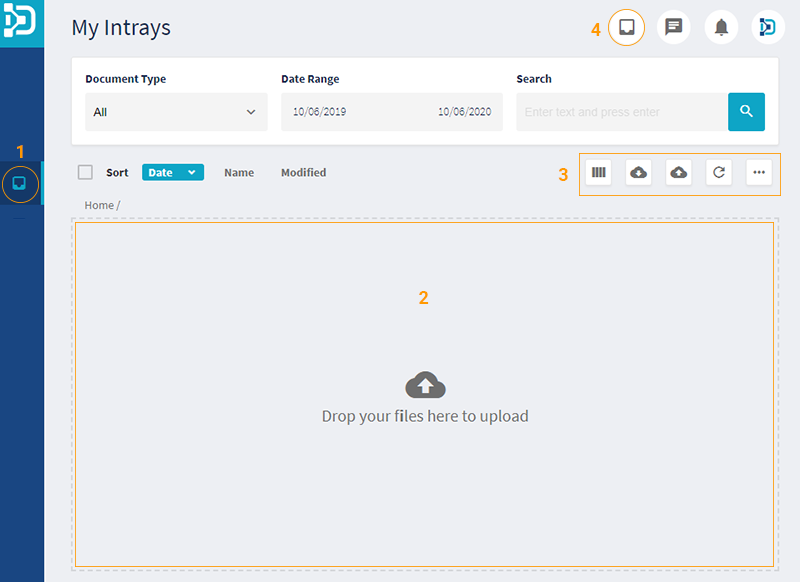
General Dropzone
How to drop a file into the Dropzone
Open a folder on your PC/laptop and drag a file into the Dropzone.
Emails can also be dragged from email clients.
Valid file types
AVI, BMP, CSV, DMD, DMF, DMM, DO, DOC, DOCX, EML, GIF, JPG, JPEG, MD, MPG, MSG, MOV, MP4, M4A, PDF, PNG, PPT, PPTX, RTF, TIF, TIFF, TXT, XLS, XLSX
Intray menu

My Dropzones
Use personal Dropzones if you index on a regular basis.
Index from My DropzonesWeb page to Intray
This converts a web page into a PDF file and adds it to your Intray.Upload Files
This is an alternative method for uploading files instead of the Dropzone.Refresh
Refresh the contents of your Intray.Thumbnail Size
This allows changes to the thumbnail preview size of items in your Intray.
Other Intray features
Documents added to the Intray appear as thumbnail previews. Clicking on a thumbnail allows indexing. Right clicking on a thumbnail provides these options:
Create folder
Folders are useful for tidying up your Intray.Send to
Documents can be sent to other users or entities.Document edit/merge/split/rotate/rename
How to edit Intray documentsDelete
How to index a document
Index from My Intray
Add document to Intray
(a) Drag the document from your laptop/PC and drop it in the general DropZone
or
(b) Use the Upload File option (in intray menu)
The document will appear in the general DropZone as a thumbnail preview.Open document
(a) Double click on the thumbnail preview of the document
or
(b) Right click on the thumbnail and select “Index Document”.Select document type
After selecting the document type, the tags for the document type will appear.Tag & Index
Complete the tags and click on the “Index” button. The document will be indexed and removed from your Intray.
Automate indexing
Some systems have automate as an option when right clicking on the thumbnail. DocMX will index the document by setting the document type and completing the tags.
Index from My Dropzones
Navigate to My Dropzones
See menu item for My DropzonesAdd Zone (if required)
Click on the “Add Zone” button and select the document type. A box named after the document type will be created in My Dropzones.Drop document into the Zone
Drag the document from your laptop/PC and drop it on top of the document type box. The document will appear in the “Files to upload” area.Process Files
Click on the “Process Files” button and the file will open with the correct document type and tag fields.Tag & Index
Complete the tags and click on the “Index” button.
How to edit Intray documents
Before indexing a document, there are options to edit them in the Intray.
Edit PDF document
Select document
Left click on one PDF document.Edit
Right click and select “Edit”.
Edit options
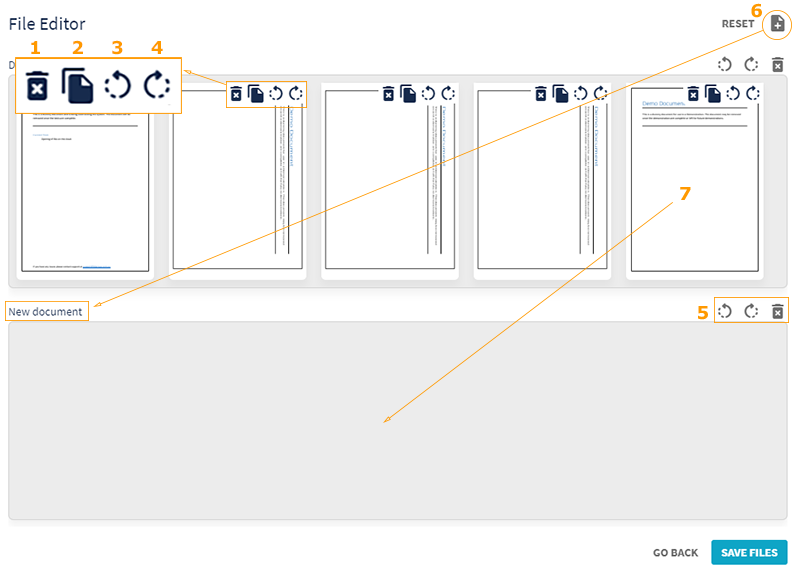
Delete single page.
Copy single page.
Rotate single page left.
Rotate single page right.
Rotate and delete options for all pages in the document.
Add a new document.
Drag a single page from one document to another.
Merge PDF documents
Select documents
Select two or more PDF documents that you wish to merge.
(a) Left click on one document and then Left click + Ctrl (Cmd for mac) to select more.
or
(b) Left click on one document, hold Shift, and then Left click on another to select a sequence of documents.Merge
Right click and select “Merge”.
Split PDF document
Select document
Left click on one multi-page PDF document.Split
Right click and select “Split into single pages”.
This will create new single page PDF documents.
Rotate PDF document
Select document
Left click on one PDF document.Rotate
Right click and select “Rotate Left” or “Rotate Right”.
Rename
Select document
Left click on one PDF document.Rename
Right click and select “Rename”.